Shifts
Schedule a shift
Book a guard at a building for a date and time, give them a route, repeat shifts on set weekdays and change shifts later.
Updated October 5, 2026
On this page
A shift tells a guard where to work and when. You pick the guard, the building and, if you like, the route they patrol. Add the guard and the route first.
-
Click Schedule Shift.
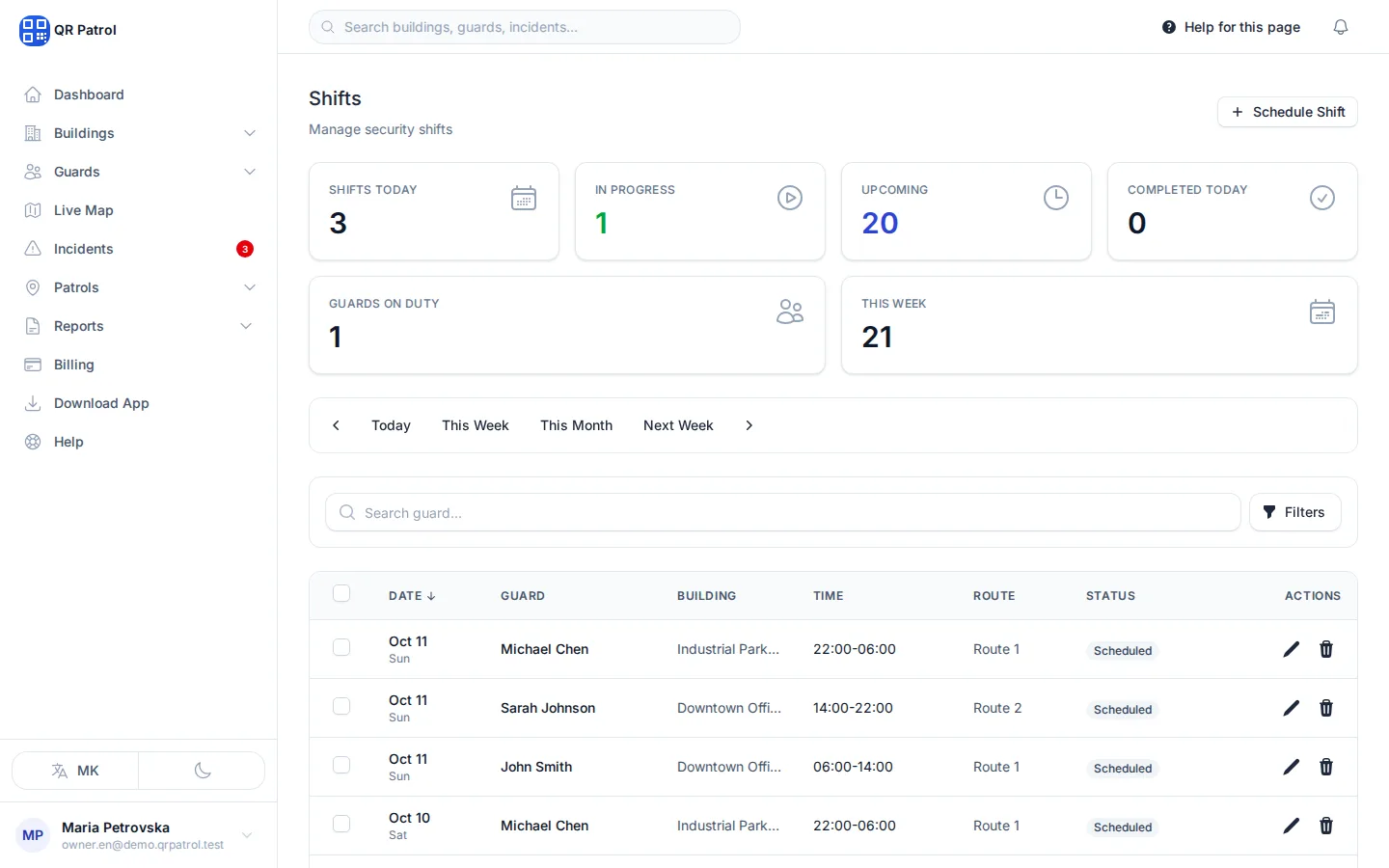
-
Choose the Guard who works the shift.
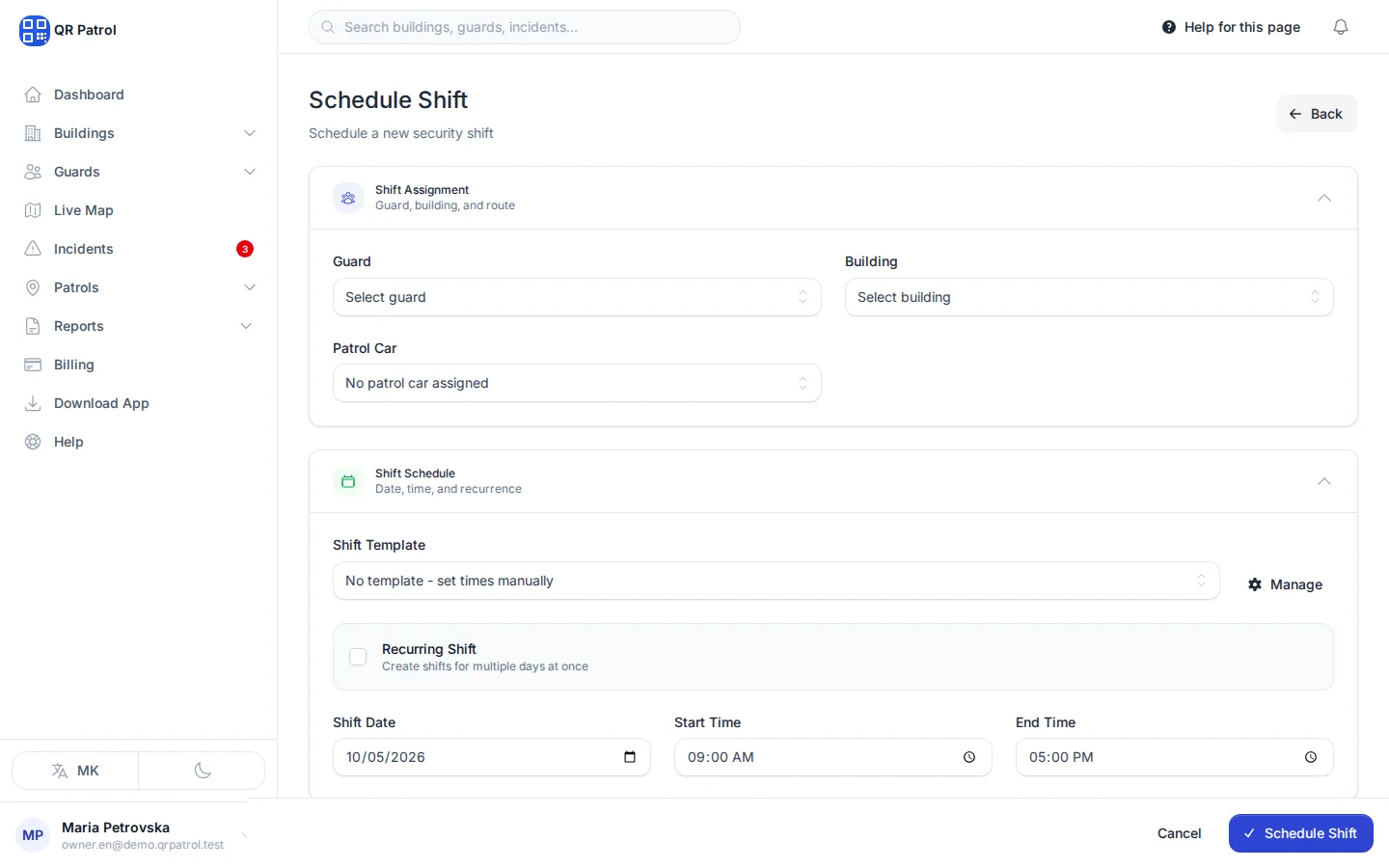
-
Choose the Building.
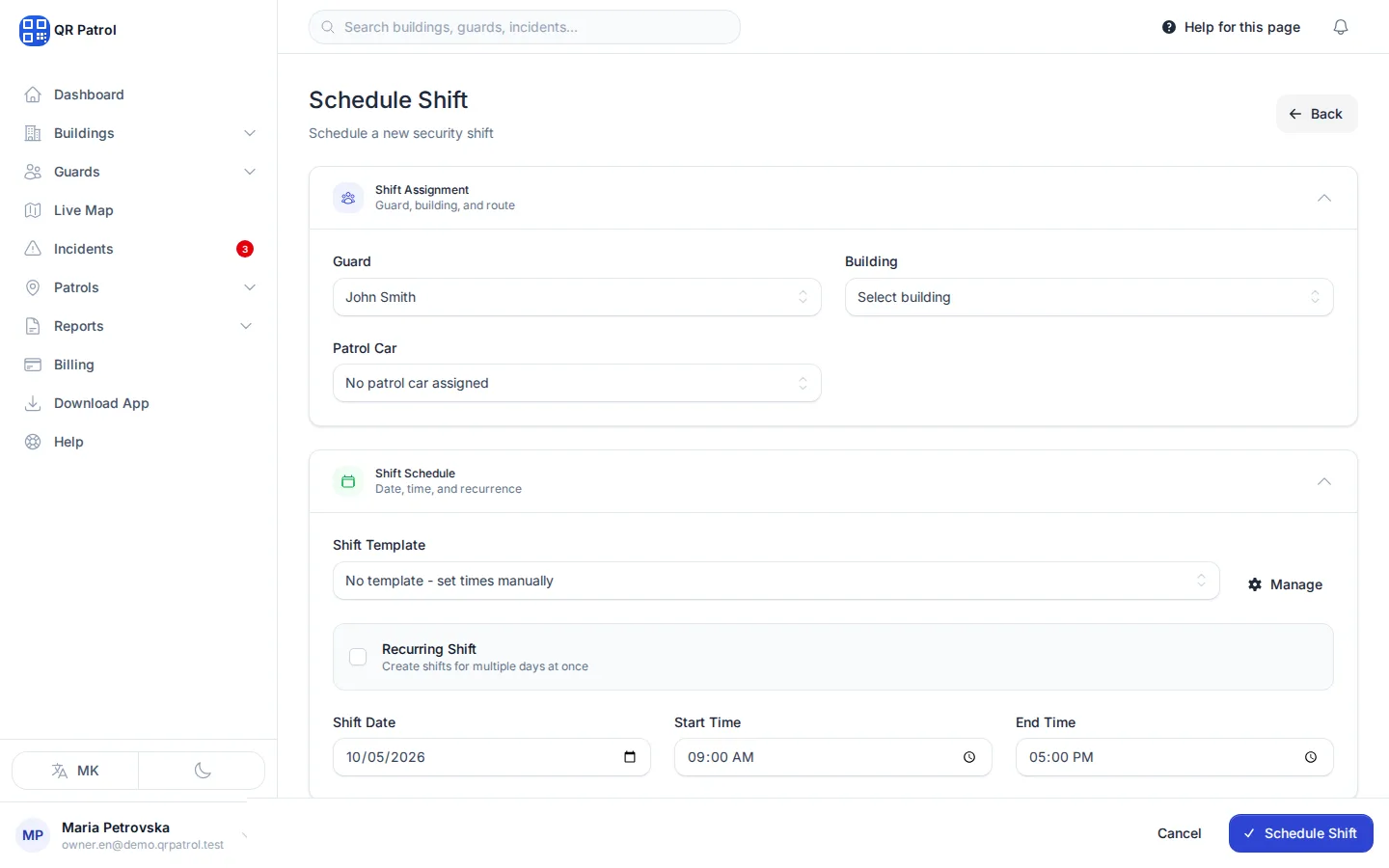
-
Pick the Route the guard should patrol.
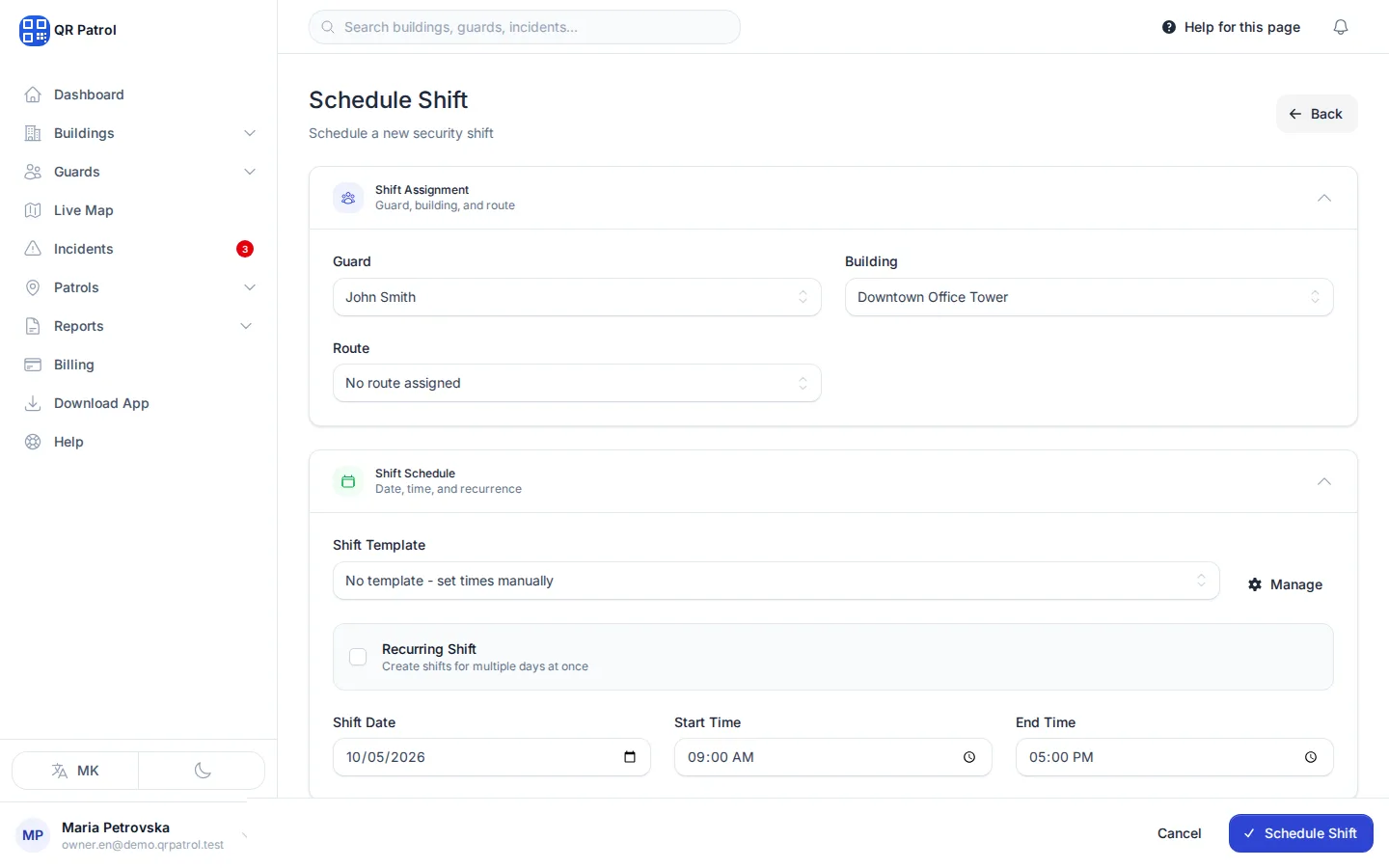
-
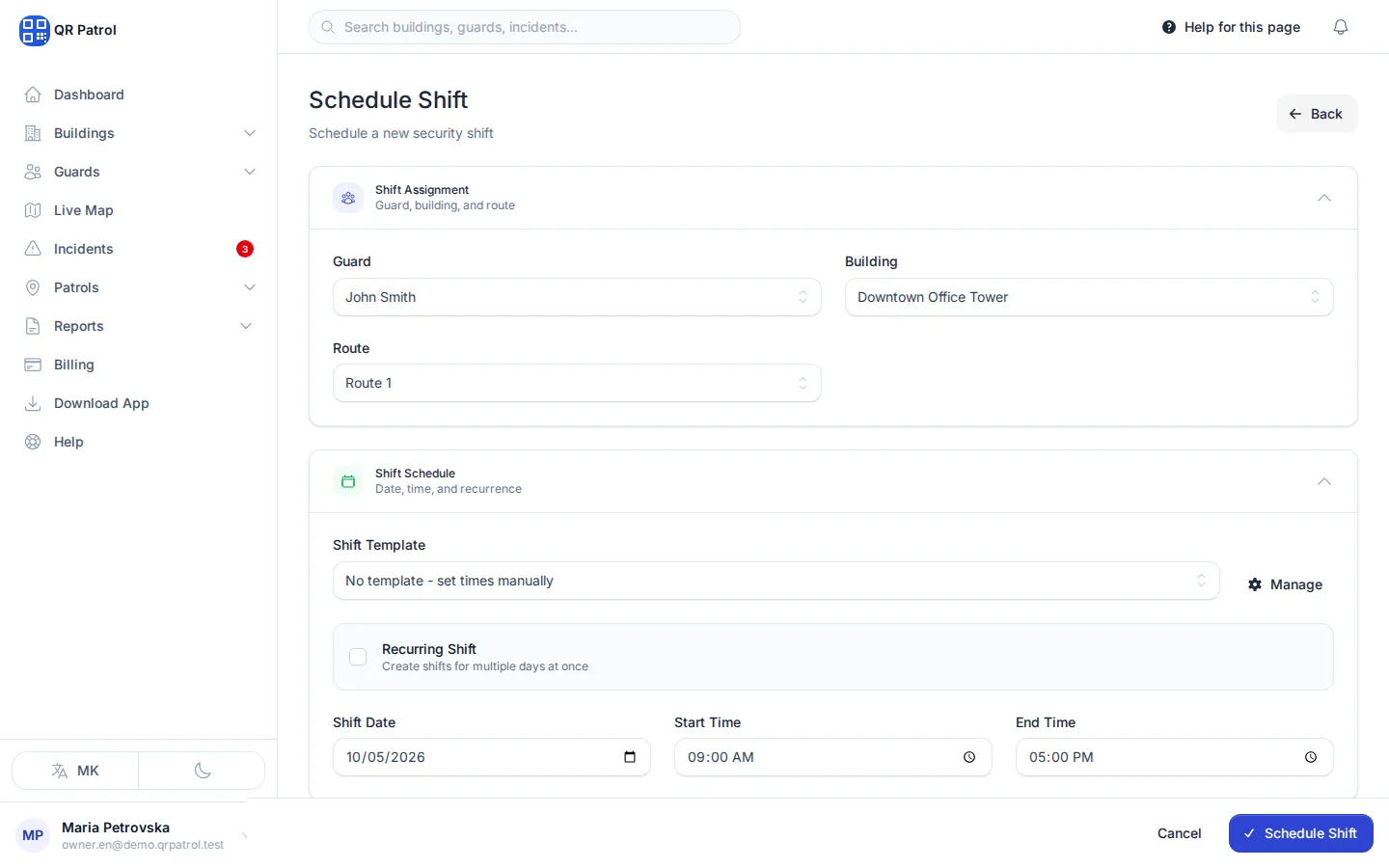
Shift Date starts on today. Change it if the shift is on another day.
-
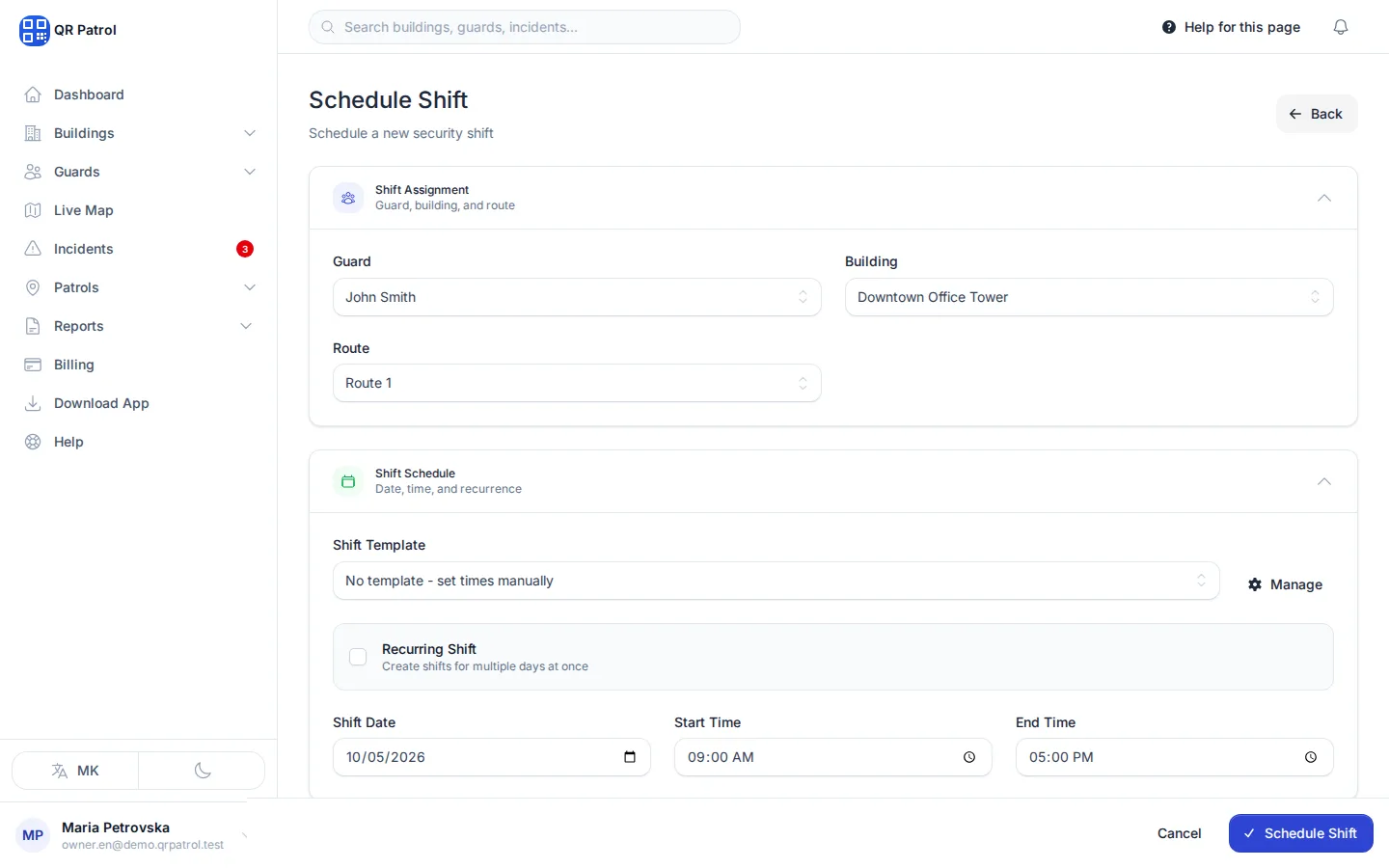
Set the Start Time.
-
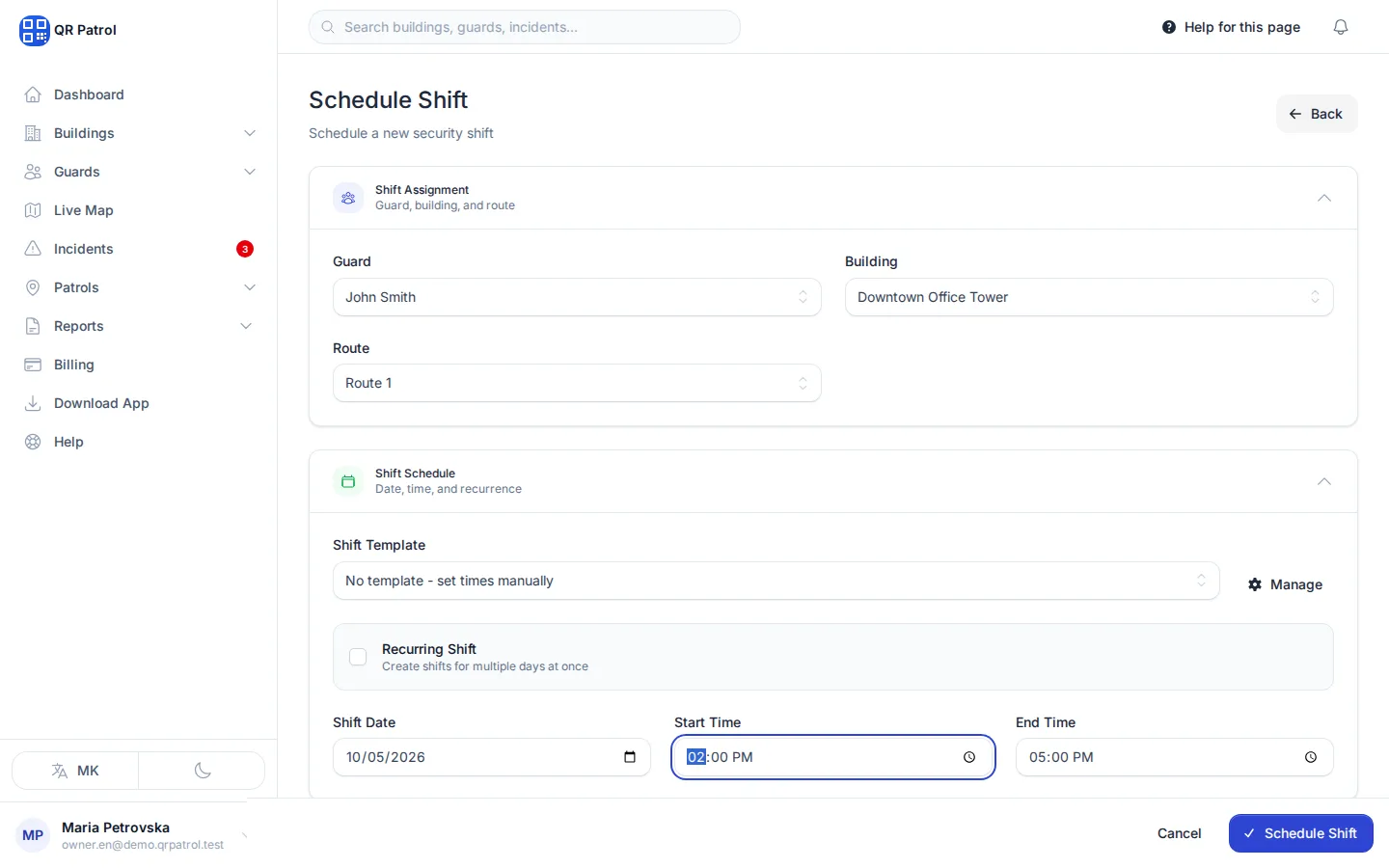
Set the End Time.
-
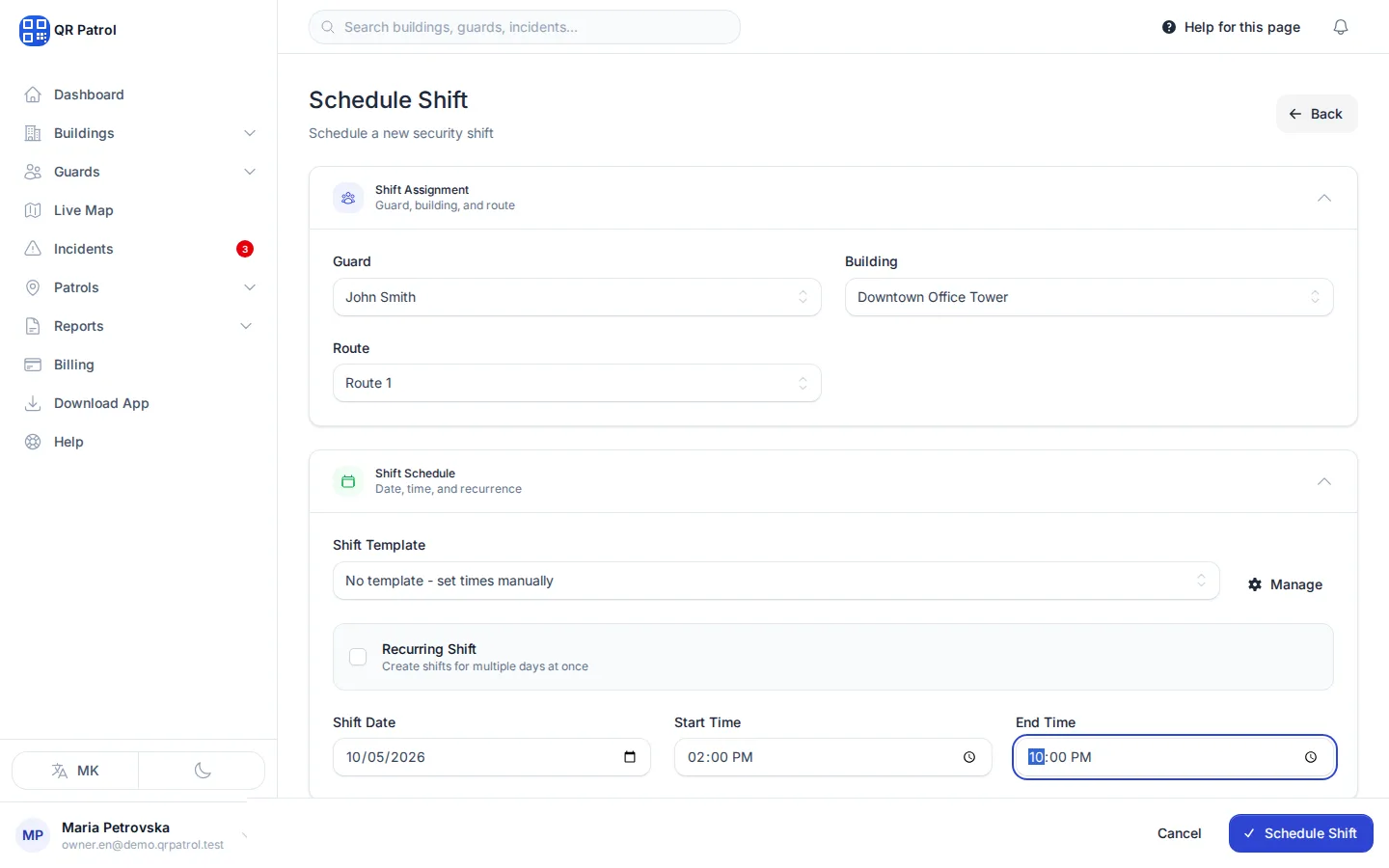
Click Schedule Shift to save.
Schedule a shift
- Open Shifts. From the dashboard you can also click Create Shift under Quick Actions and skip the next step.
- Click Schedule Shift.
- Under Shift Assignment, choose the Guard.
- Choose the Building.
- Choose a Route from that building's active routes, or leave No route assigned.
- Under Shift Schedule, set the Shift Date, Start Time and End Time. The form starts on today, 09:00 to 17:00.
- Click Schedule Shift in the bar at the bottom of the page.
QRPatrol opens the building's page on the Shifts tab, with the new shift in the list.
For a night shift, enter an end time earlier than the start time, for example 22:00 to 06:00. The list's Overnight filter finds these shifts.
Save times you use often
Pick a Shift Template to fill in the start and end time for you. Click Manage next to it to create templates. See Shift templates.
Check for double bookings
QRPatrol does not stop you from giving a guard two shifts at the same time. Check the list before you book.
Shifts for a patrol car
Leave Building empty and a Patrol Car field appears instead of Route. A shift needs a building or a patrol car. Only active cars that are available are listed.
Repeat a shift on several days
- On the Schedule Shift form, tick Recurring Shift.
- Under Days of Week, click each day the shift repeats on.
- Set the Start Date and End Date. The start date can't be in the past, and the end date must be after it.
- Set the Start Time and End Time.
- Click Create Recurring Shifts.
QRPatrol creates one shift for every selected weekday between the two dates. Each one is a normal shift that you can change or delete on its own.
Add notes
Open Notes to add Notes (English), Notes (Macedonian) and Supervisor Notes for the shift.
Change or delete a shift
In the shift list, click the pencil on a row to open Edit Shift. Besides the guard, building, route, date and times, you can set the Status: Scheduled, In Progress, Completed, Cancelled or No Show. Click Update Shift to save.
To delete one shift, click the bin on its row and confirm with Delete Shift. This can't be undone.
To change several shifts at once, tick their rows. The bar that appears lets you Reassign guard, Reassign route, Reassign vehicle, Set status, Export CSV or Delete. Set status only offers Scheduled, Cancelled and No Show.
Find shifts
The list starts with shifts from the last 30 days onwards, latest date first. Use Today, This Week, This Month and Next Week to jump to a period, or the arrows to move a week at a time. Type in Search guard... to find a guard's shifts. Click Filters to narrow the list by Building, Guard, Status, Shift Template, day of the week and more.
Use the calendar
A building's page has a Shifts tab with that building's shifts and a Calendar View of the month. Click a shift in the calendar to change its guard, times, route or status, then click Save. Full Edit opens the whole shift form. See The building page.
Shift details
The Shift Details page shows the scheduled time, guard, building and status of a shift. Once the guard has worked it, it also shows the actual start and end, break time and the checkpoints scanned during the shift. Click Edit to change the shift.
Related articles
- Shift templates Save the start and end times you schedule most, such as a morning or night shift, and fill them into new shifts in one click.
- Create a patrol route Build a route from a building's checkpoints, put them in the order guards should walk them and set how the route is patrolled.
- Add a guard Create a guard account with a name, email and password, then choose their default building and which patrols they can do.