Guards
Add a guard
Create a guard account with a name, email and password, then choose their default building and which patrols they can do.
Updated October 5, 2026
On this page
Every guard needs their own account. The email and password you set here are what the guard uses to sign in to the mobile app.
-
Click Create Guard.
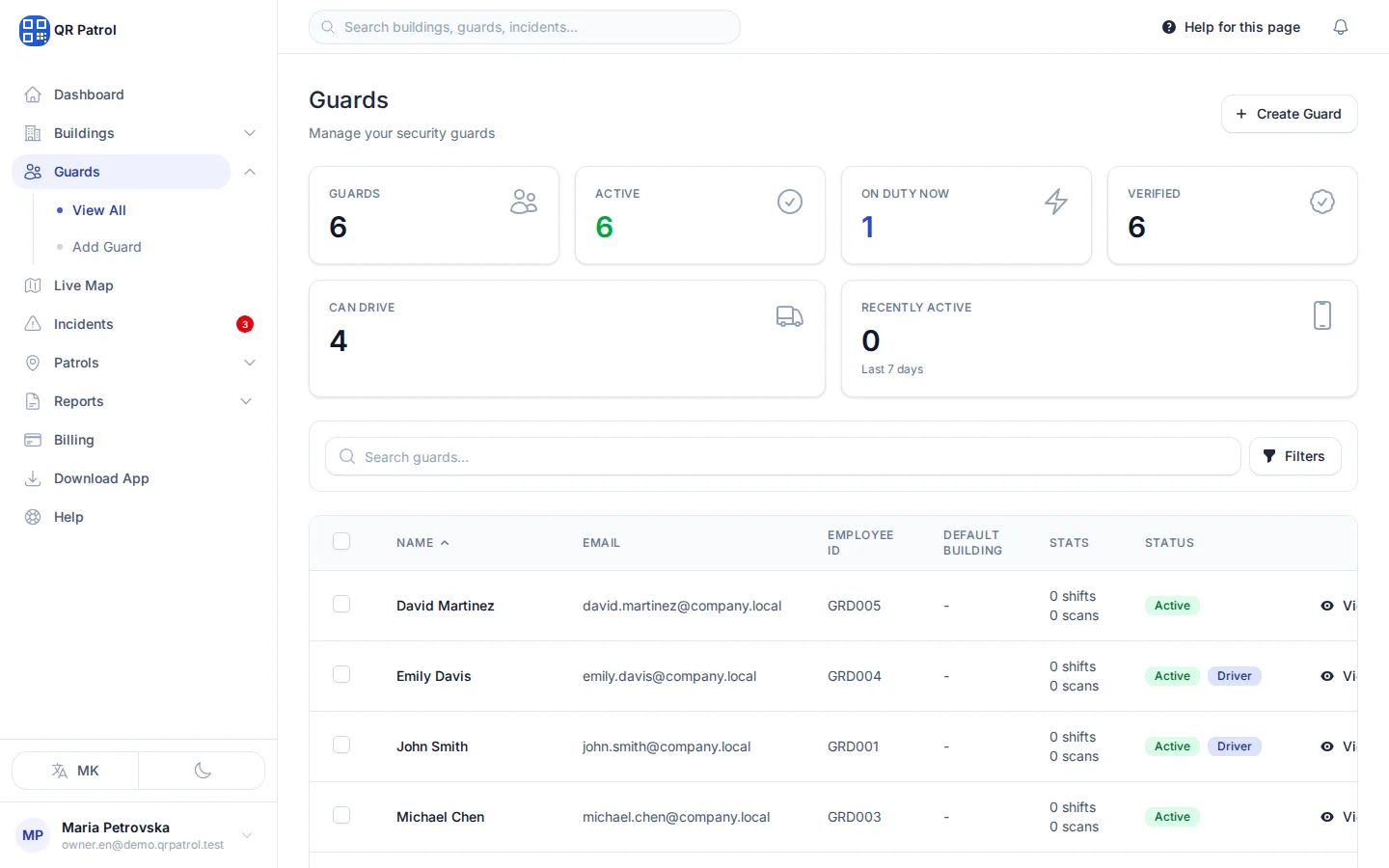
-
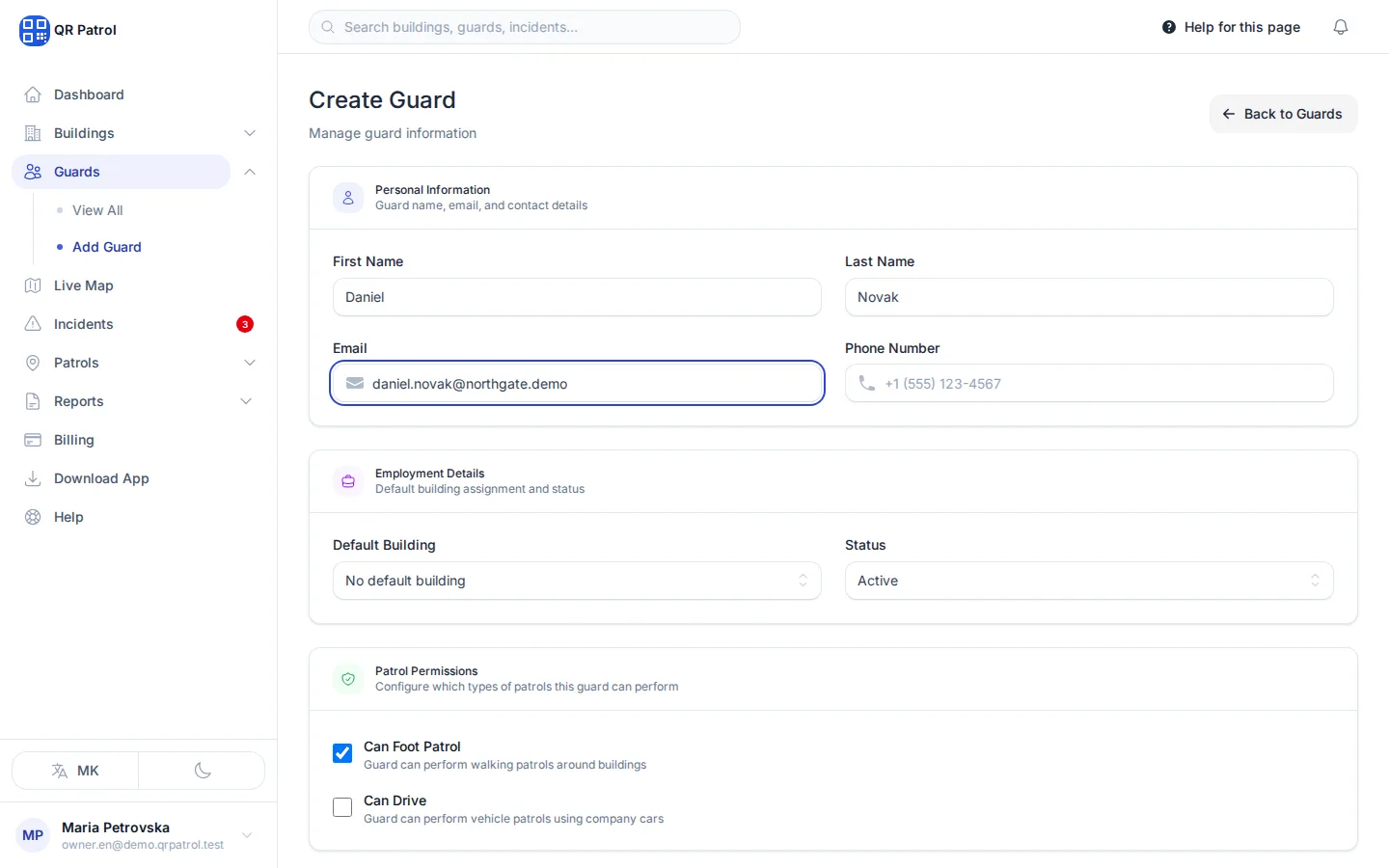
Enter the guard's First Name.
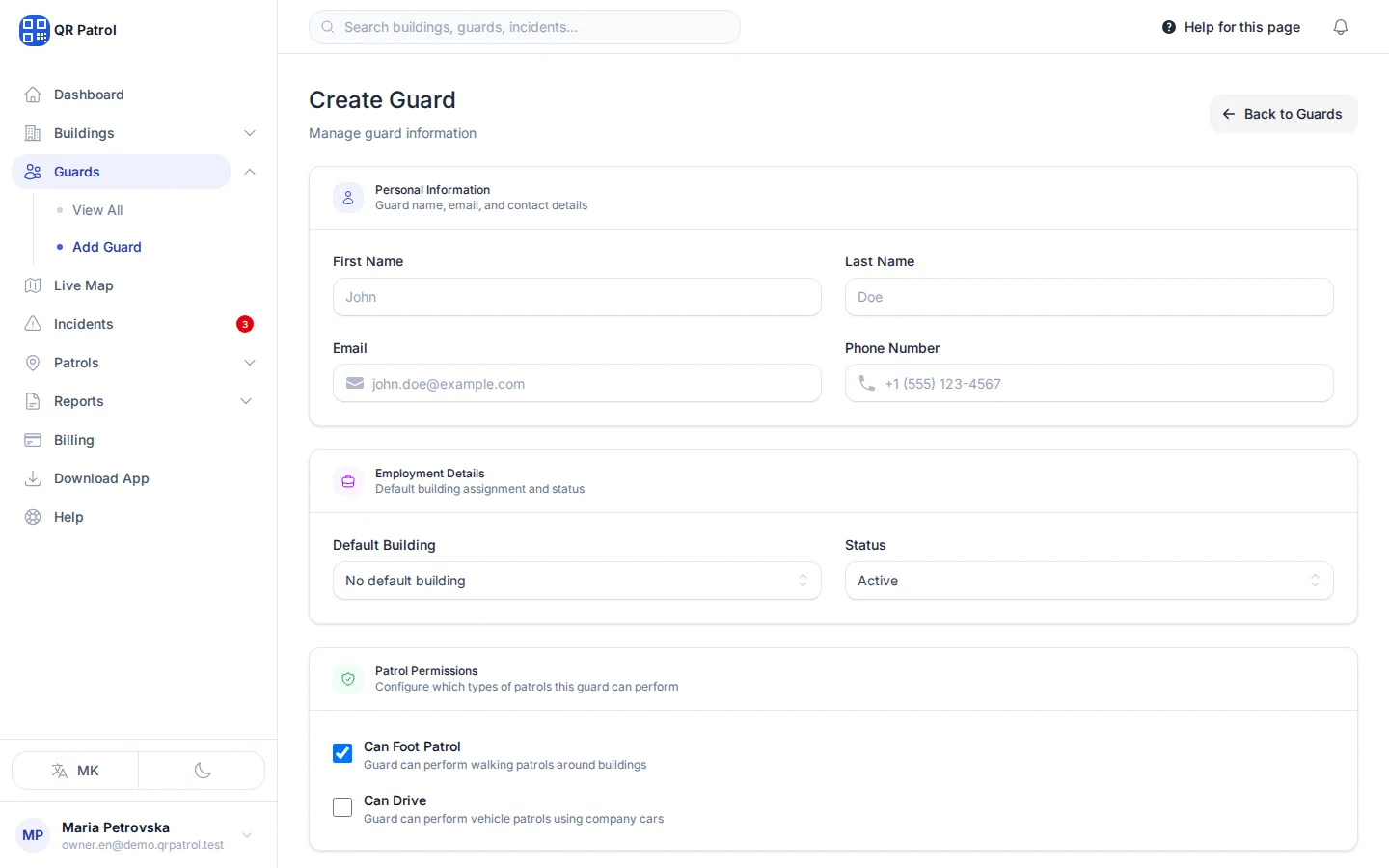
-
Enter the Last Name.
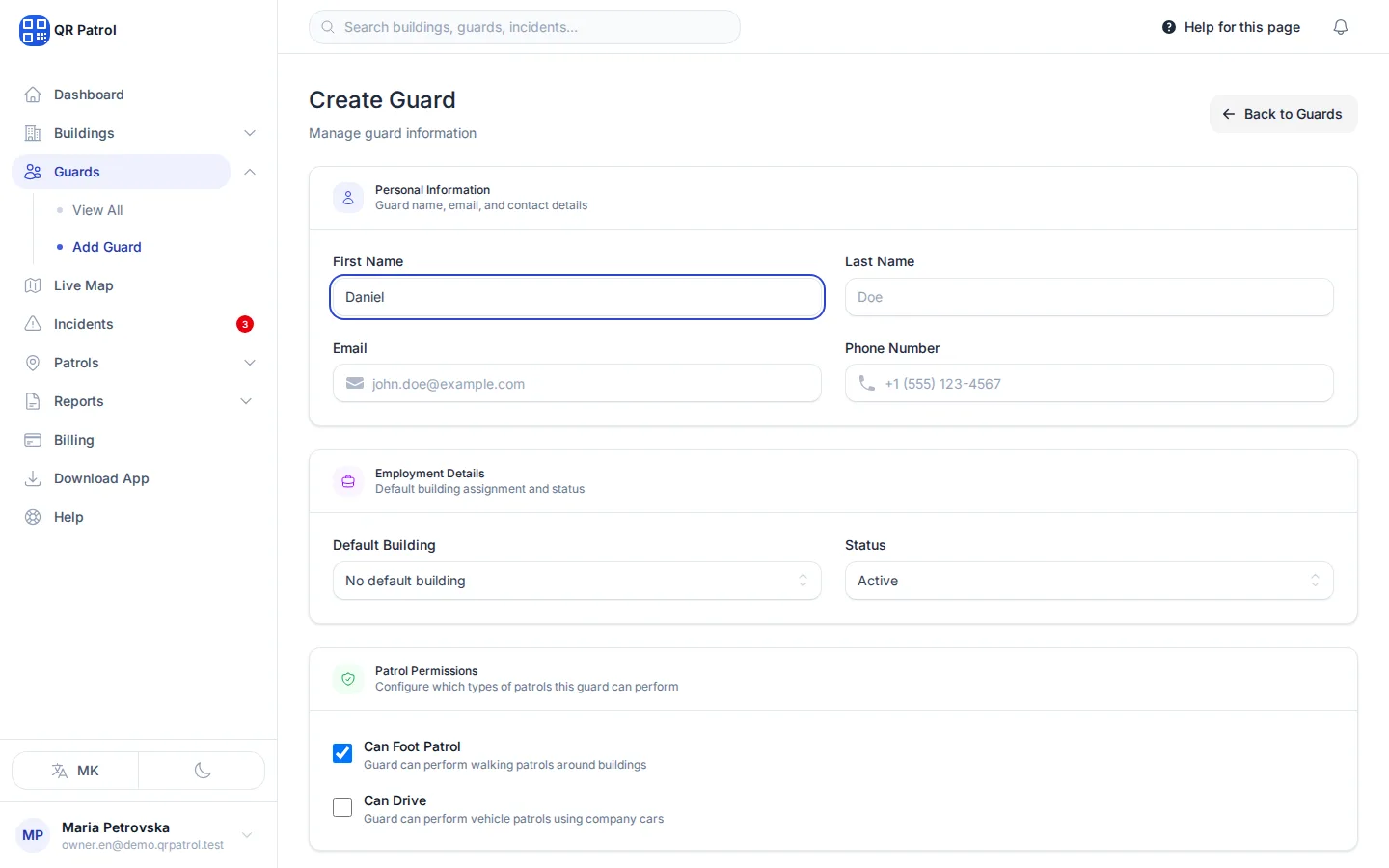
-
Enter the guard's Email. They sign in to the mobile app with it, so no other guard can use the same one.
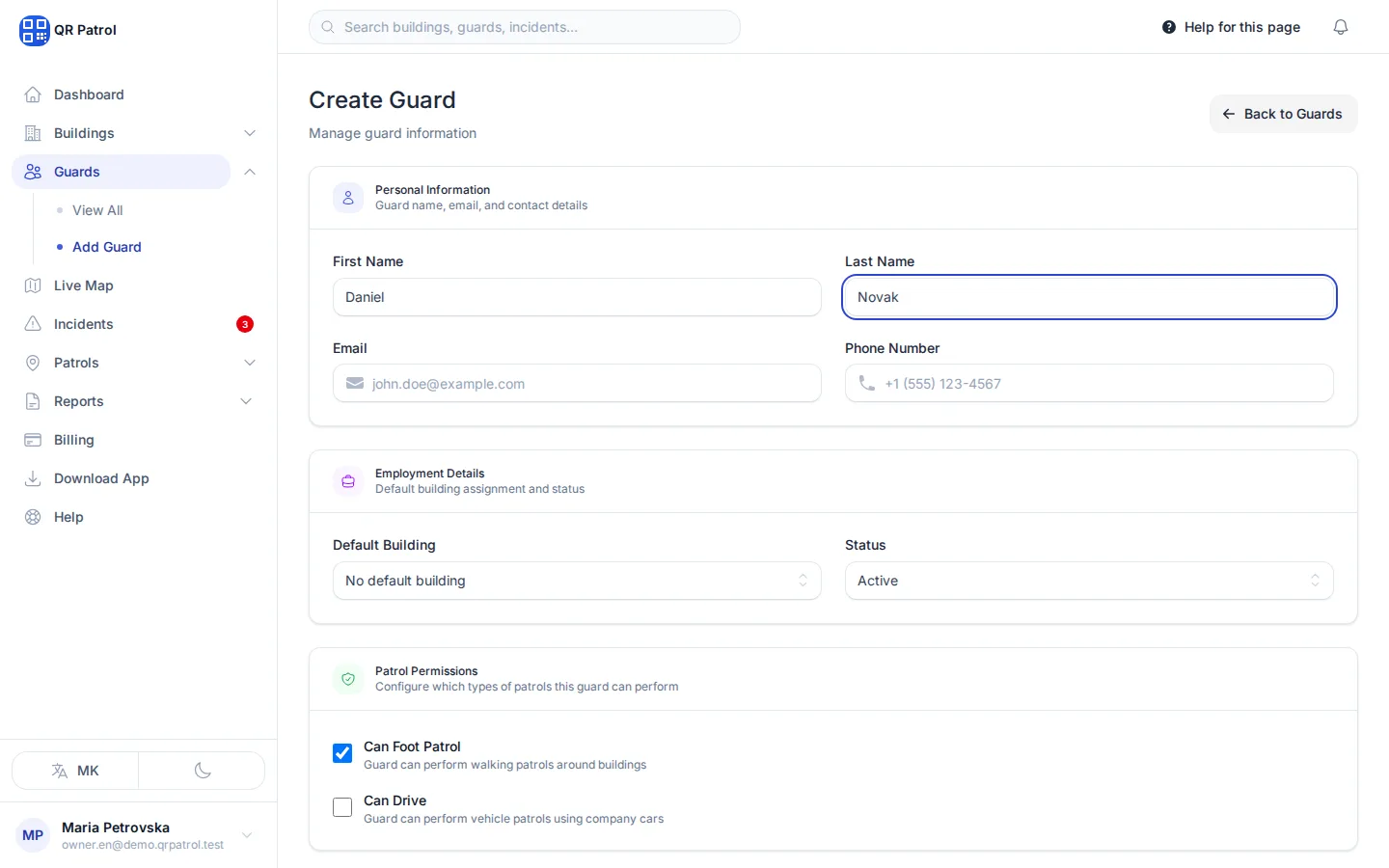
-
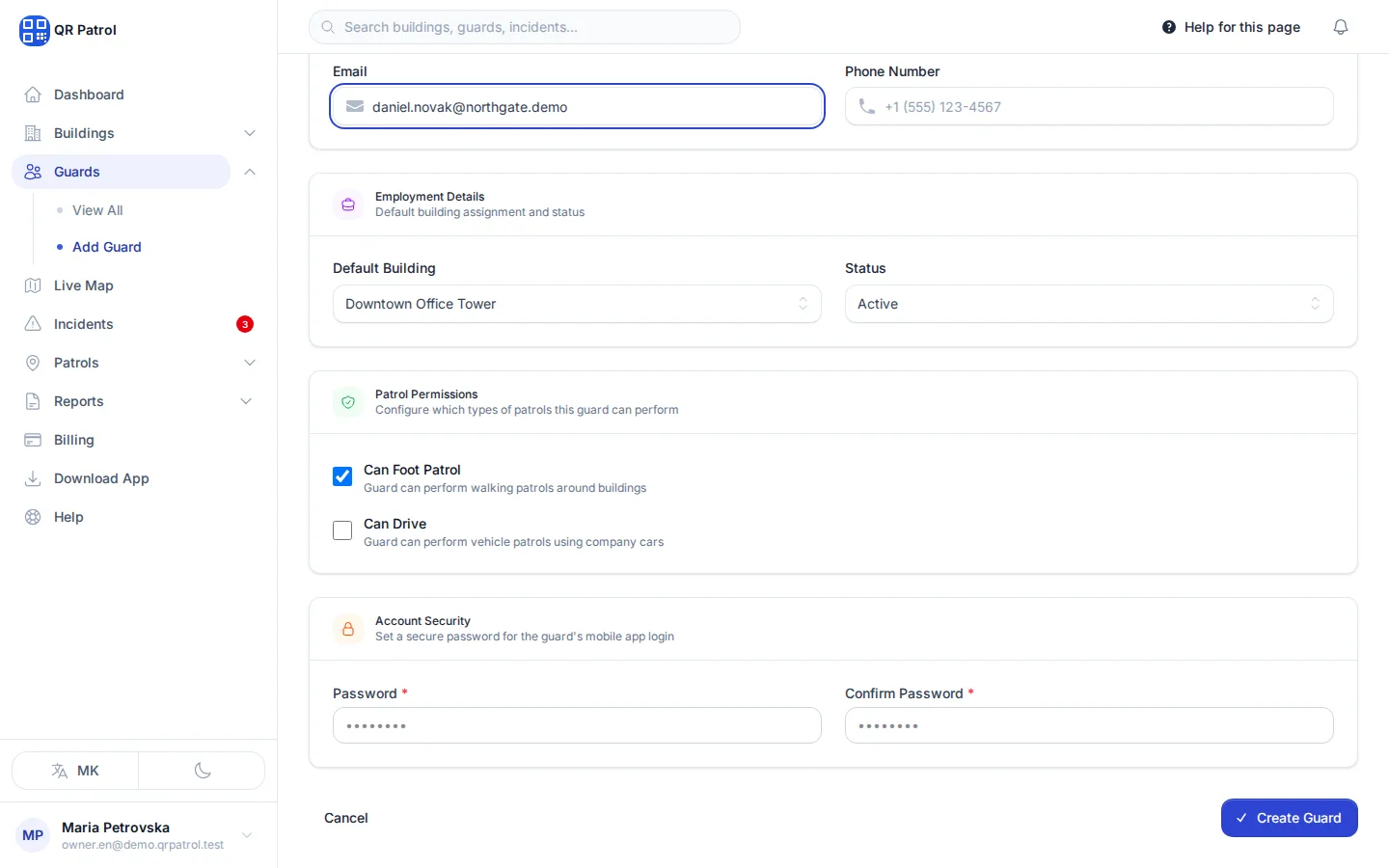
Pick a Default Building. The guard sees it in the mobile app.
-
Set a Password of at least 8 characters for the mobile app.
-
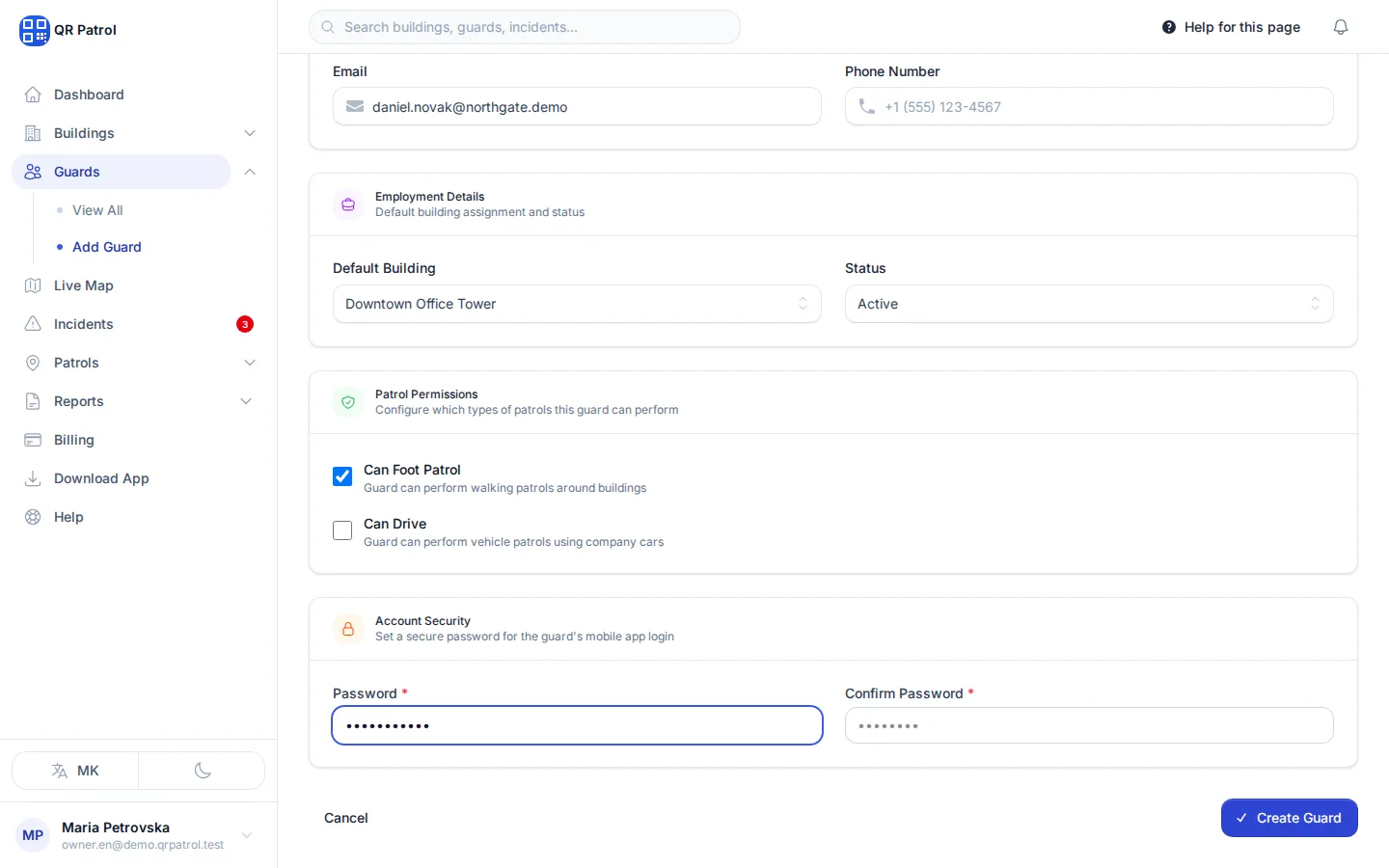
Type it again in Confirm Password.
-
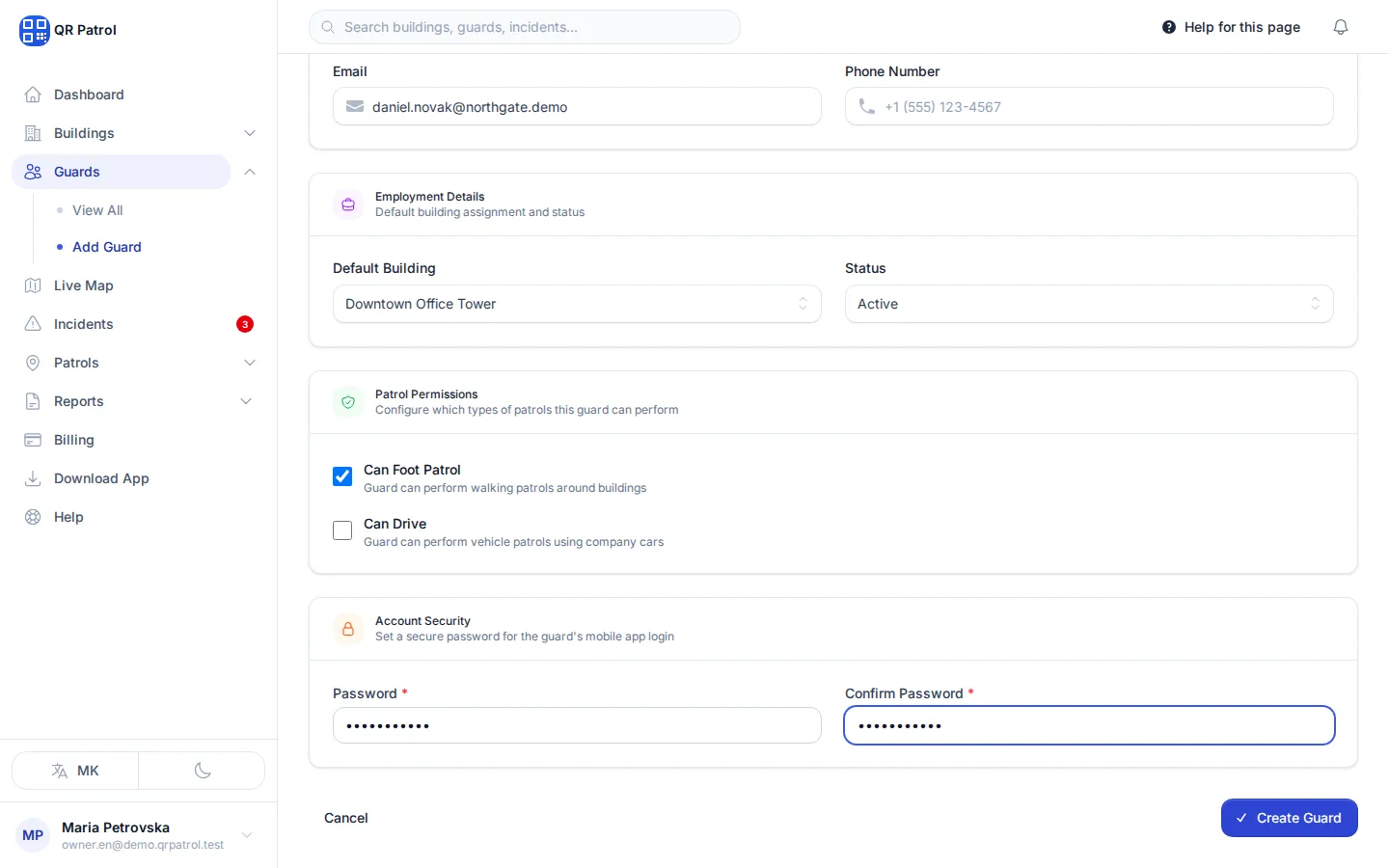
Click Create Guard at the bottom of the form.
-
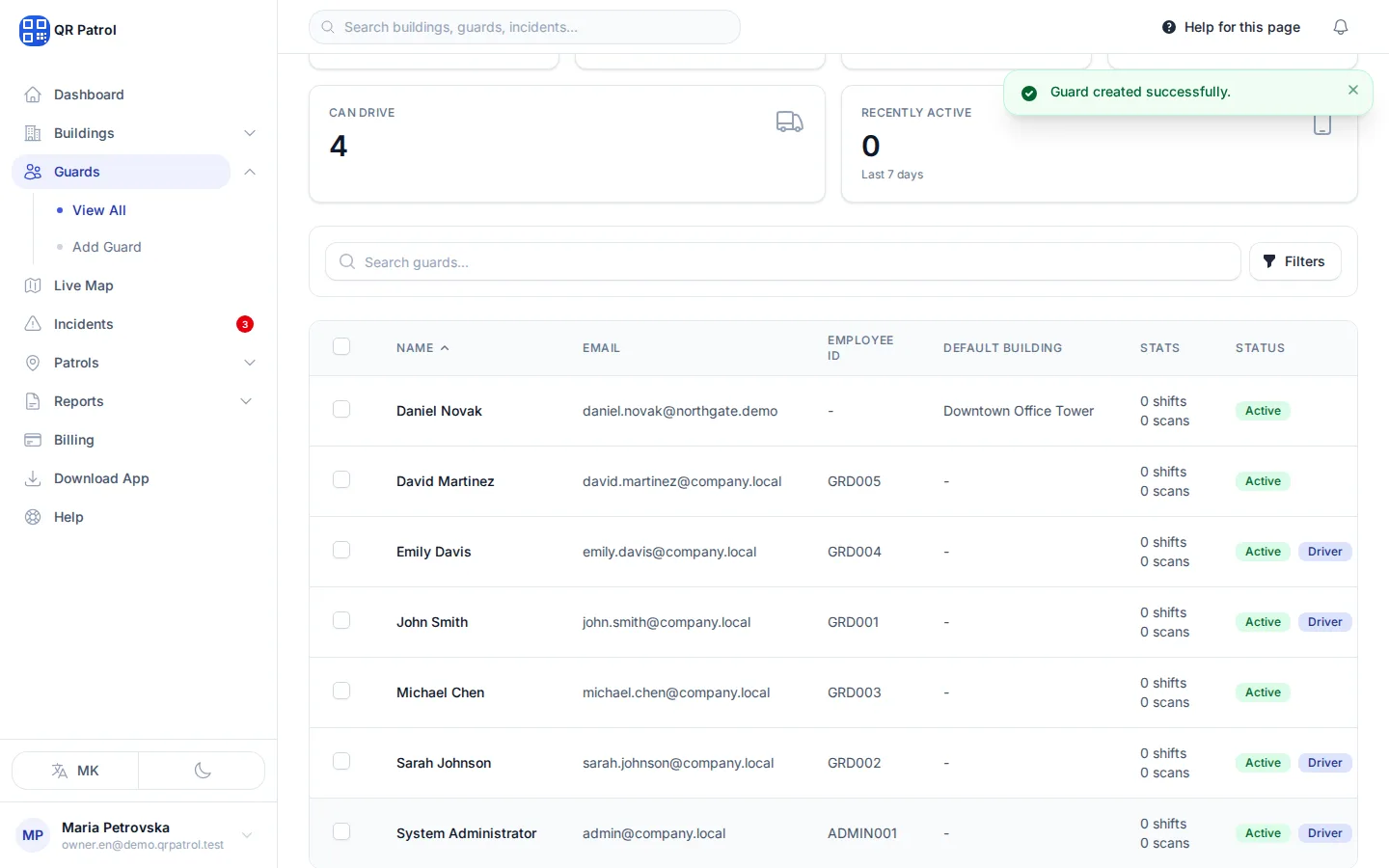
The new guard is in the list. Give them their email and password so they can sign in.
Create the guard
- Open Guards in the sidebar.
- Click Create Guard.
- Under Personal Information, enter the First Name, Last Name and Email. No other guard in your company can have the same email. Phone Number is optional.
- Under Employment Details, pick a Default Building and leave Status on Active.
- Under Patrol Permissions, tick Can Foot Patrol, Can Drive or both.
- Under Account Security, enter a Password of at least 8 characters and type it again in Confirm Password.
- Click Create Guard at the bottom of the form.
QRPatrol takes you back to the guard list, with the new guard in it. Give the guard their email and password, then follow Give guards access to the mobile app.
The Default Building list only appears once you have a building. Until then the form shows No buildings available. Create a building first. You can still save the guard and pick a building later.
Patrol permissions
The two boxes under Patrol Permissions decide what happens when the guard taps Start Shift in the mobile app.
| Ticked | What the app does |
|---|---|
| Can Foot Patrol only | Goes straight to choosing a building for a foot patrol. |
| Can Drive only | Starts a car patrol. |
| Both | Asks the guard which type of patrol to start. |
| Neither | Tells the guard they don't have permission to start a patrol. |
Edit a guard
- In the guard list, click Edit on the guard's row.
- Change what you need. Under Change Password (Optional), leave both password fields empty to keep the current password.
- Click Update Guard.
See a guard's activity
Click View on a guard's row to open their page. It shows the Guard Information and four totals: Total Shifts, Completed Shifts, Total Scans and Scans This Month. Below them are Upcoming Shifts, Recent Shifts and Recent Checkpoint Scans, each shown only when it has something in it. Click Edit at the top to change the guard's details.
Remove a guard
To stop a guard using the app but keep them in your list, edit them and set Status to Inactive. To remove them completely, click Delete Guard on their row and confirm with Delete Guard in the dialog.
If you can't add another guard
Every plan has a guard limit. When you reach it, the form shows an error under Email instead of saving. Upgrade under Billing to add more.
Related articles
- Give guards access to the mobile app How guards sign in to the mobile app, which buildings they see there, and how to reset a password or block access.
- Install the app and sign in Get the QRPatrol mobile app on your phone and sign in with the email and password your company gave you.
- Schedule a shift Book a guard at a building for a date and time, give them a route, repeat shifts on set weekdays and change shifts later.