Buildings
Add a building
Create a building with its name, code and address, pin it on the map and record who the client is.
Updated October 5, 2026
On this page
A building is any site you protect. Checkpoints, routes, shifts and reports all hang off a building, so it is the first thing to create.
-
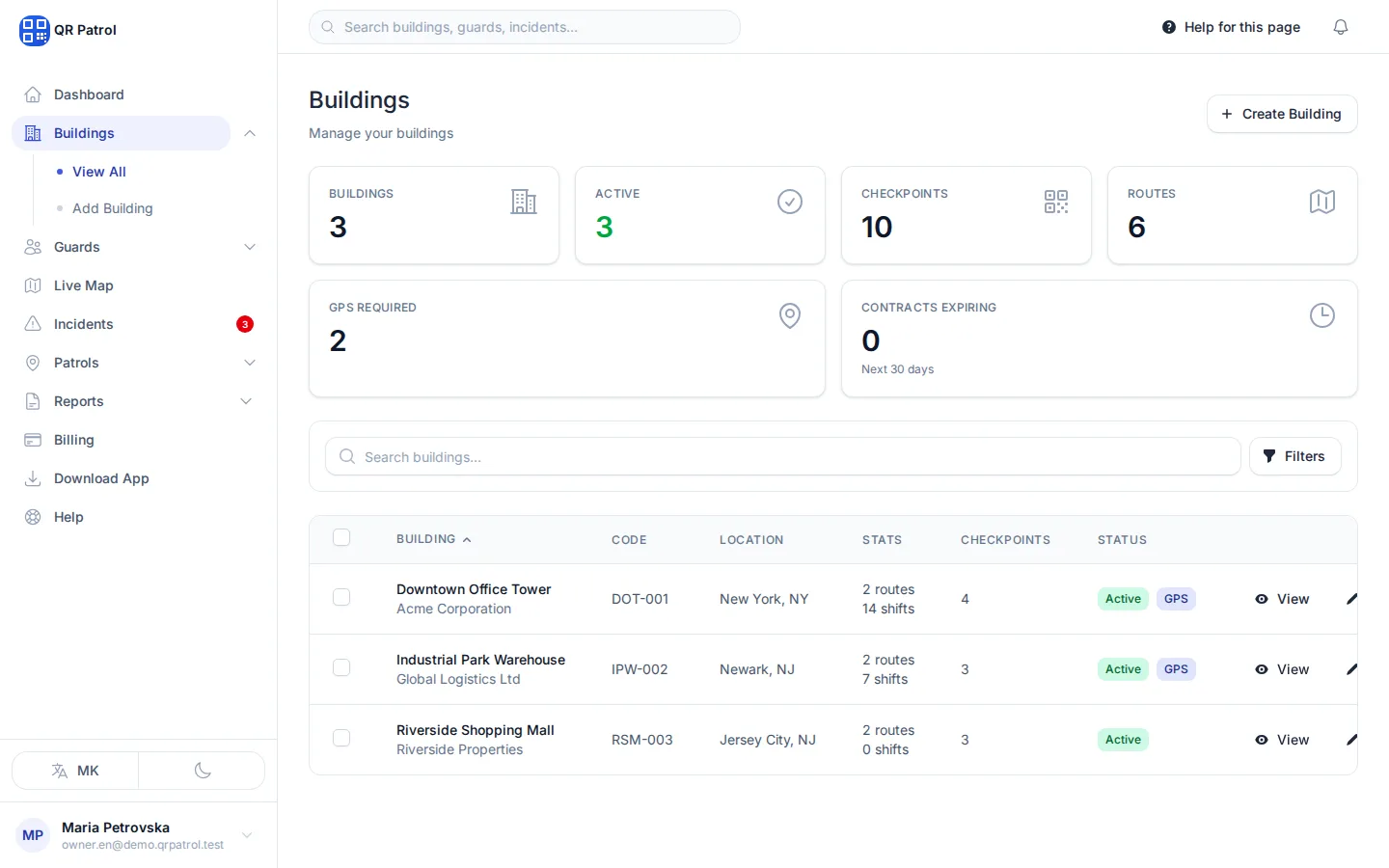
Click Create Building.
-
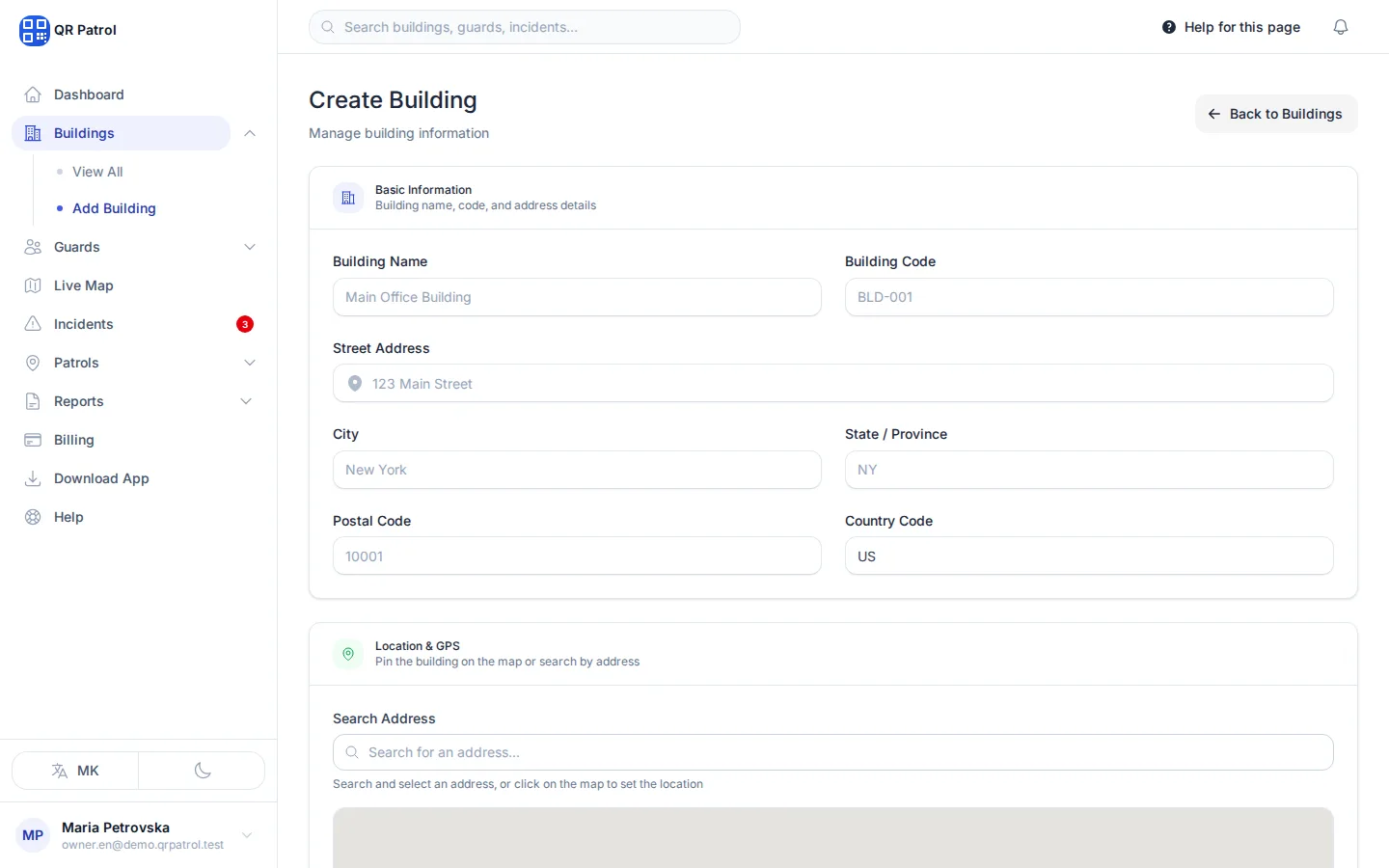
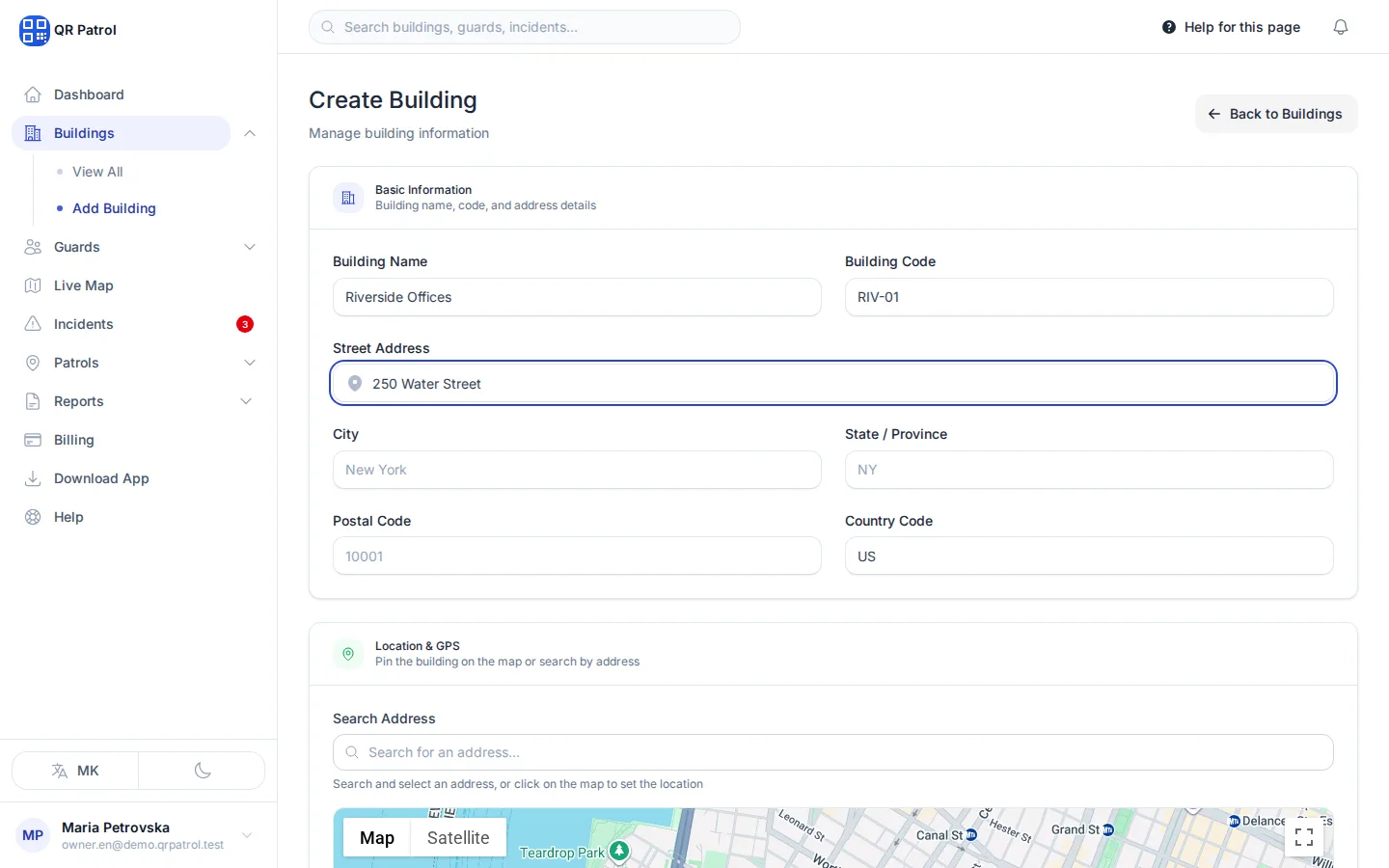
Enter the Building Name.
-
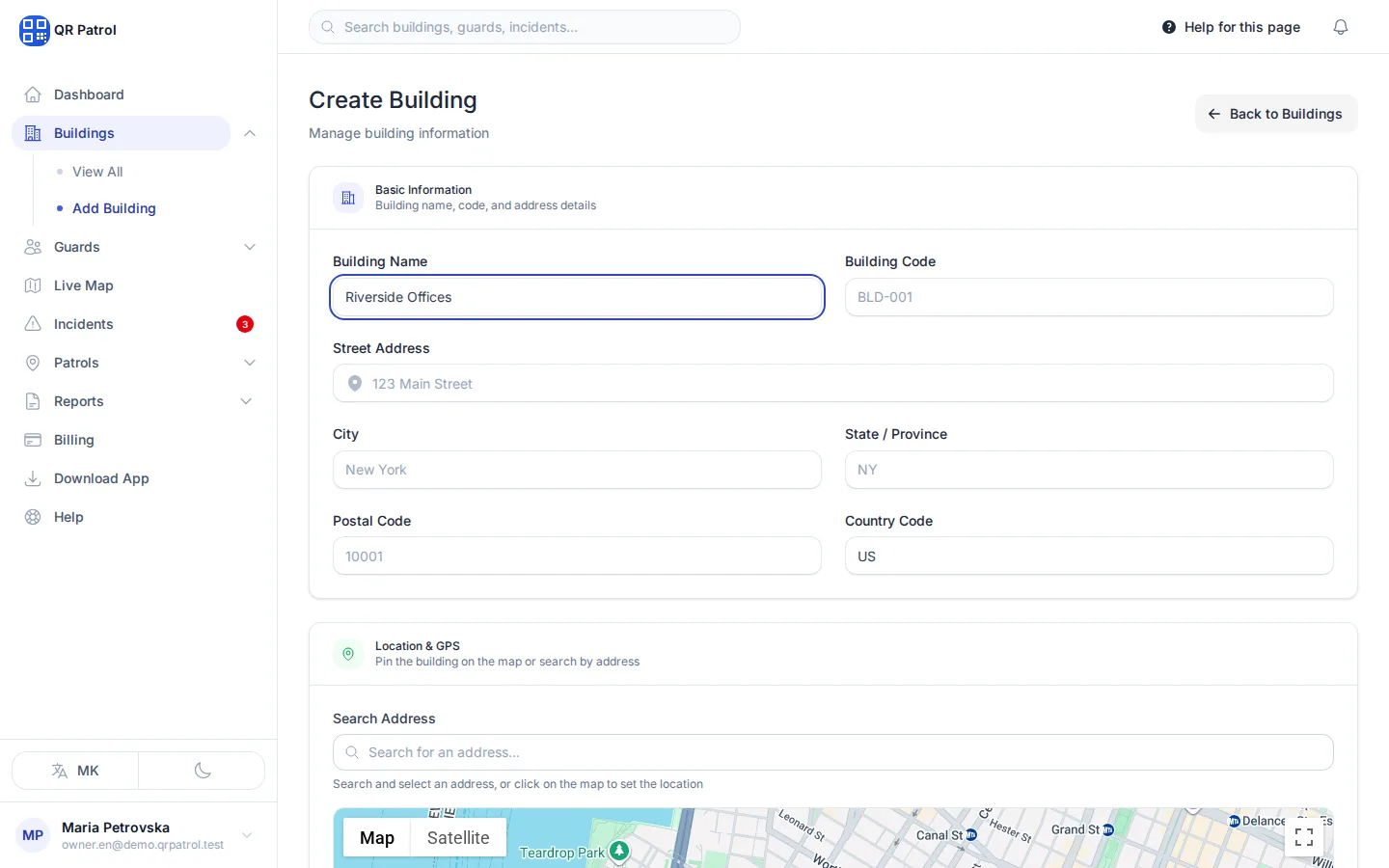
Give it a short Building Code. No other building can use the same code.
-
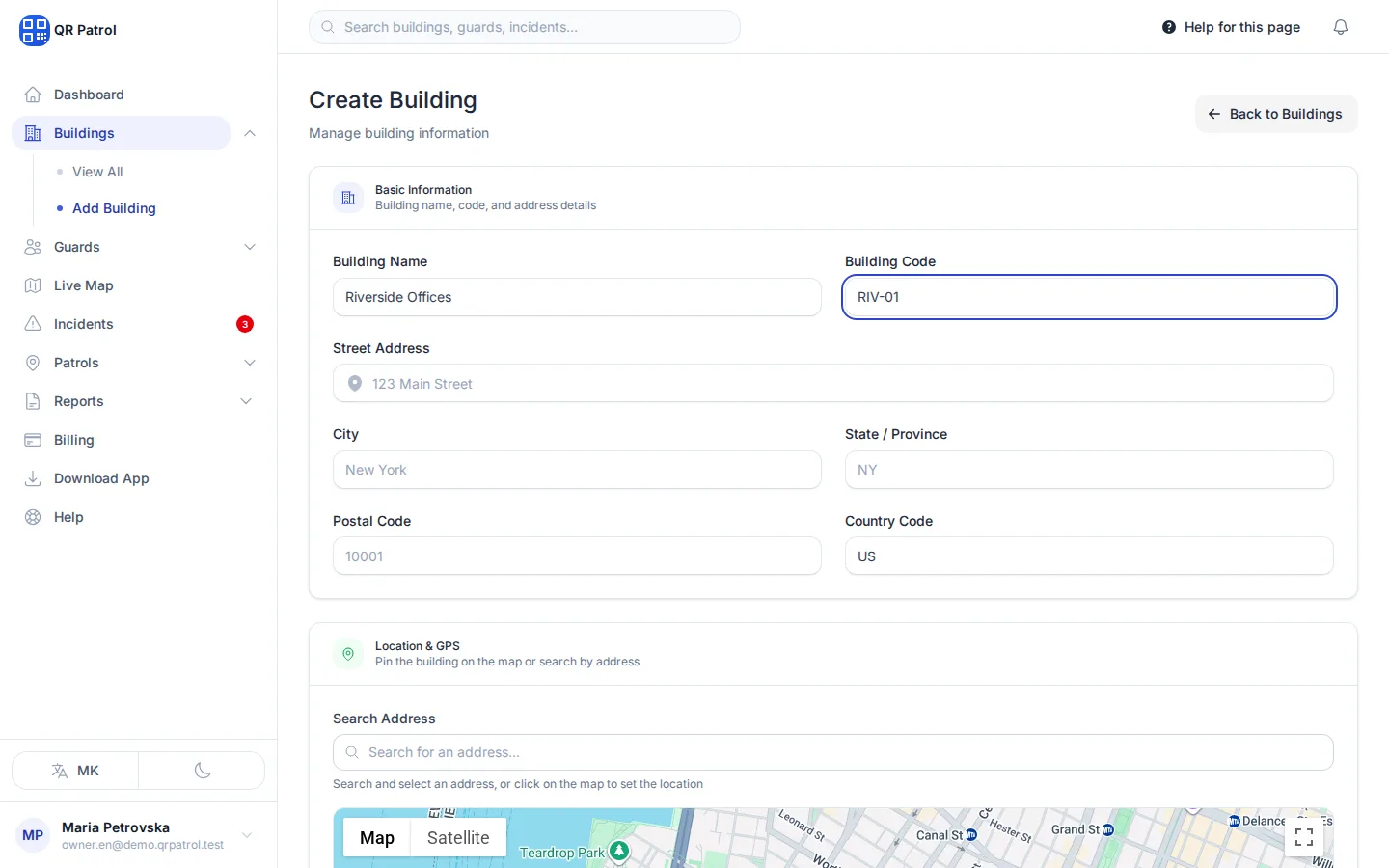
Fill in the Street Address.
-
Add the City.
-
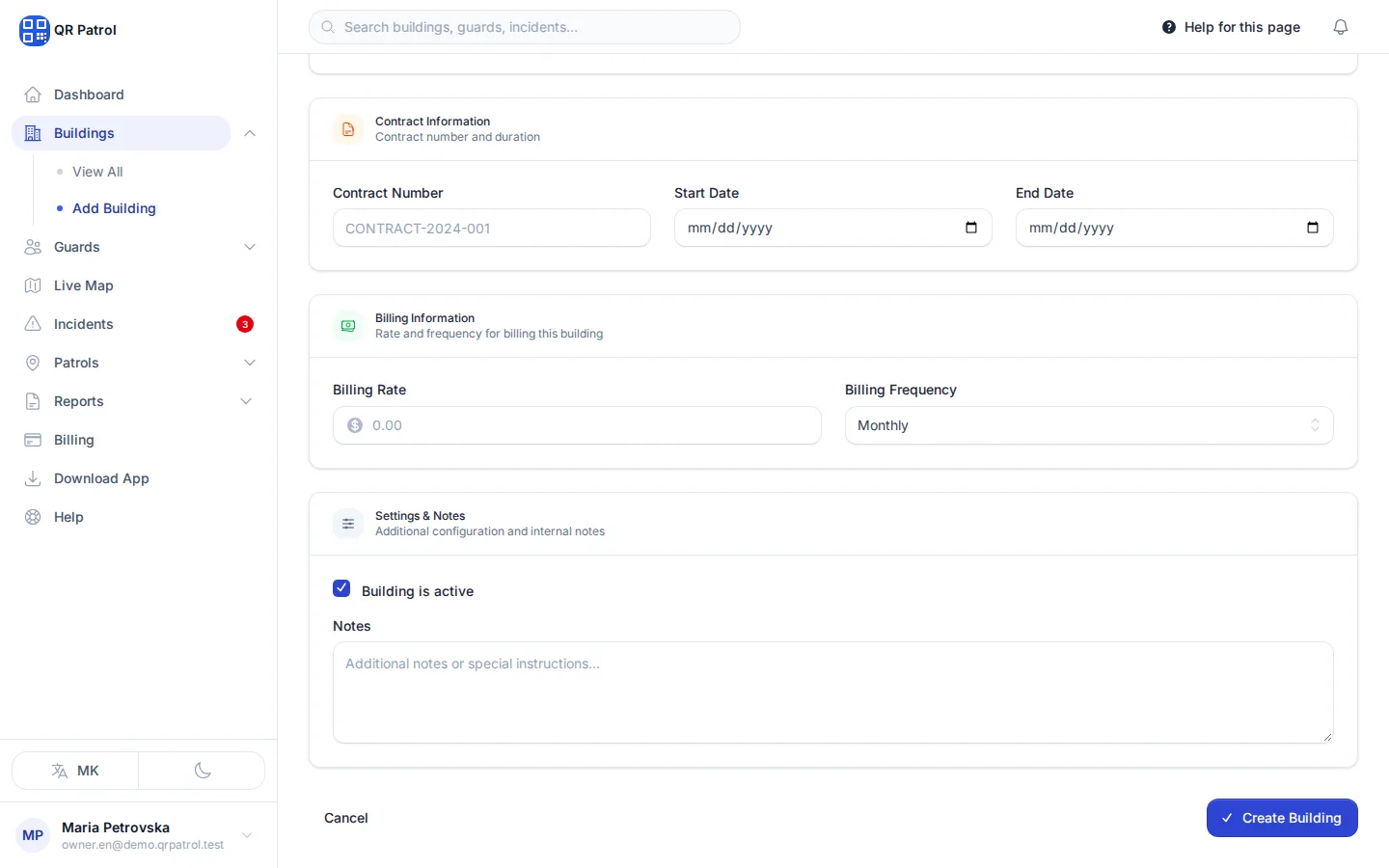
Click Create Building at the bottom of the form.
-
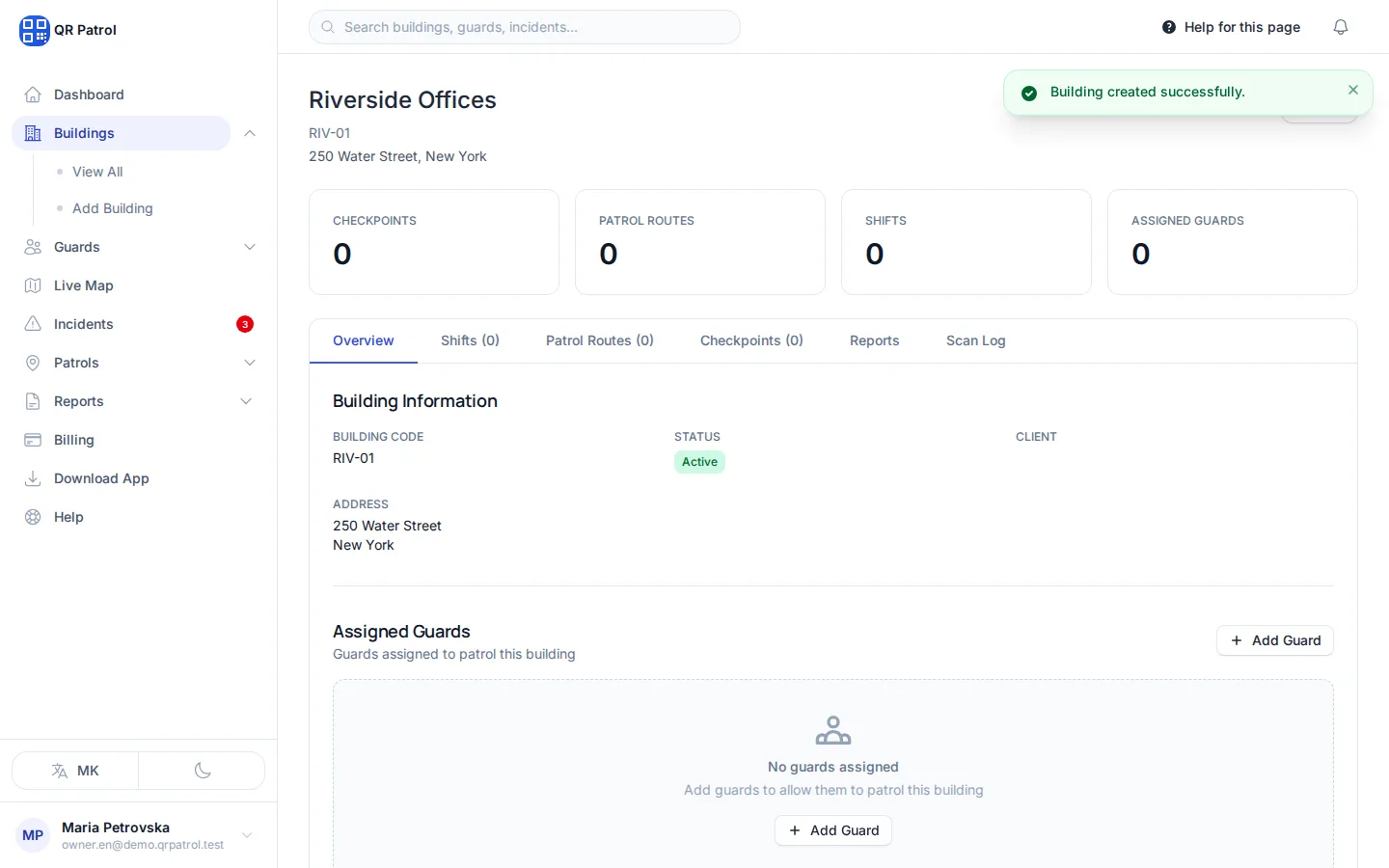
The building page opens. Use these tabs to add checkpoints, routes and shifts.
Create the building
- Open Buildings in the sidebar.
- Click Create Building.
- Under Basic Information, enter the Building Name and a short Building Code, for example
HQorWH-02. The code must be unique across your buildings. - Fill in the Street Address and City.
- Check the Country Code. It starts as
US, so change it to your two-letter code, for exampleMK. - Click Create Building at the bottom of the form.
QRPatrol opens the new building's page, where you can add checkpoints, guards and routes. See Manage a building.
Pin it on the map
Under Location & GPS, type the address into Search Address and pick the match, or click the map where the building is. This fills in Latitude and Longitude and puts the building in the right place on the live map.
Every checkpoint scan is compared with the checkpoint's own location. To choose how close guards must be, tick Require GPS validation for check-ins and set GPS Radius (m). A scan further away than that is still saved, but flagged as not verified. Without the tick, the limit is 50 m.
Record the client
Under Client Information, add the Client Name and a Contact Person, Contact Email and Contact Phone. These details are only for you. Clients do not get a login.
If you can't add another building
Every plan has a building limit. When you reach it, the form shows an error instead of saving. Upgrade under Billing to add more.
Next step
Add the spots guards must visit. See Add checkpoints.
Related articles
- How QRPatrol fits together The five things you set up in QRPatrol, what each one is for, and the order to set them up in.
- Manage a building Use a building's page to see its checkpoints, routes, shifts and scans, assign guards, edit its details, or deactivate and delete it.
- Add checkpoints Create the checkpoints guards scan in each building, set where they are, and edit, move or delete them later.